Build anything fast. The CI/CD platform for the AI future.
Start for free. Scale without limits.
Take control of the change happening all around you
Industry-leading speed
As soon as you think it, you can deliver it. Your time is too important to waste. No other CI/CD platform takes performance as seriously as we do. Your pipelines should accelerate your business, not slow you down.
The foundation for delivery at scale
Your CI/CD process is the heartbeat of your engineering organization. With CircleCI, teams are never limited in their ability to grow and innovate. Our experts are here to guide and support you every step of the way.
Confidence in every commit
Take control of your code and manage every source of change. CircleCI means change validation, at every step. Trust that you can release updates right when your customers need them, with the certainty they’ll work every time.
The power to create without limits
Code in every language and across multiple execution environments. If you can write it, we can build, test, and deploy it. With flexible environments and thousands of pre-built integrations, your pipelines never limit the possibility of what you can deliver.
Your toolchain, your choice
CircleCI connects with services you already use like AWS, Slack, and Atlassian. Build on GitLab, GitHub, and Bitbucket.












Accelerating engineering teams,
with the control ambitious businesses require
Security
Unmatched security
We’re the only CI/CD platform that’s FedRAMP certified and SOC 2 Type II compliant. Built-in features like audit logs, OpenID Connect, third-party secrets management, and LDAP give you complete control of your code.
Integrations
Extensible and powerful
CircleCI makes it easy to connect all of your favorite tools to build the way you want. Use our API or choose from hundreds of orbs — packages of reusable configuration — to bring in your preferred integrations.
Support
Premium support from DevOps professionals
Our team of global, 24/7/365 support engineers will architect a solution with you — from proof of concept to success across your organization.
Compliance and authorizations
We partner with the top security organizations to ensure
that your projects are built, deployed, and maintained securely.

Trusted by leading companies
to deploy code with confidence
“CircleCI is one of those tools that silently chugs along in your stack doing some serious heavy-lifting while staying out of your way. That’s what you want in your unit testing infrastructure - something to get the job done with zero maintenance overhead.”

“Switching to CircleCI has allowed our engineers to build and release mobile and web projects with far greater simplicity, speed and performance.”

“Our time is money. Investing in CircleCI gives us time for more important projects.”

“With CircleCI, we have probably saved $75-300K in maintenance on Jenkins. We’ve also had fewer headaches and shipping is easy.”

Building AI projects? Iterate quickly and deploy safely with CircleCI

AI adoption for software: a guide to learning, tool selection, and delivery
Learn how to go from exploring AI to shipping AI features into production.

CI for machine learning: Build, test, train
Set up a continuous delivery pipeline for your ML model, including automating deployment and monitoring and retraining your ML system.
Automating and scaling machine learning workflows with CI/CD
Learn about the challenges ML teams face and how you can use CI/CD to solve them.
New
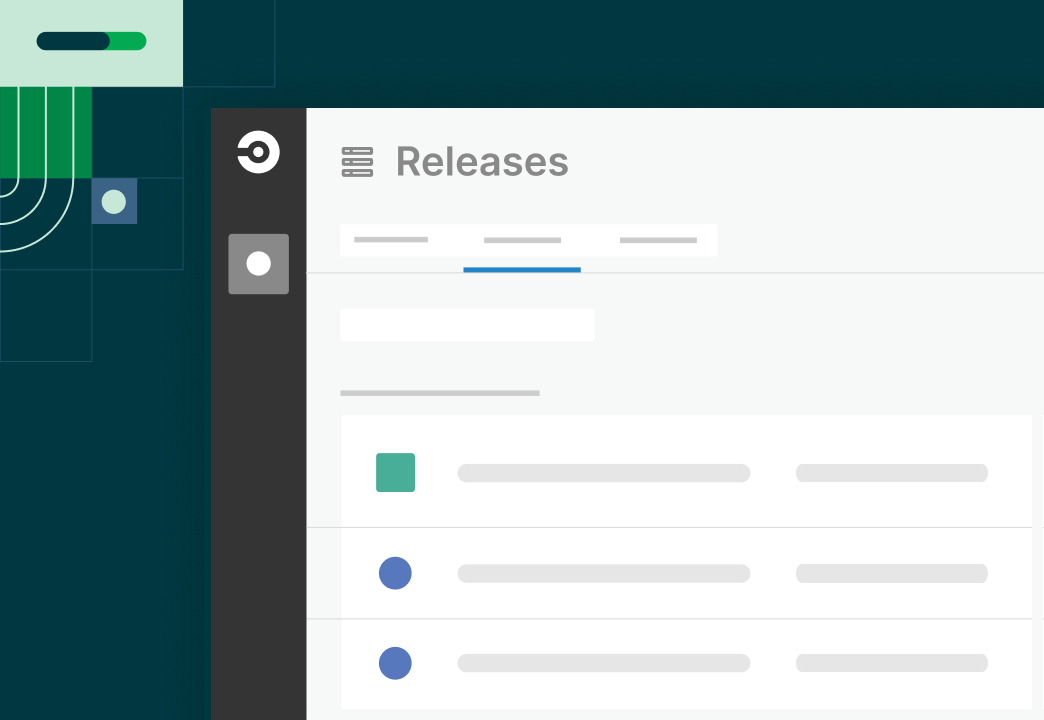
View and manage your releases from a single dashboard
Gain immediate visibility into org wide releases; no infra access required.

New
Expanded support for AI-enabled applications
New resource classes, model deployment, custom triggers along with tips for testing your LLMs in the CI.
New
Monitor soft fails from your config policies
Improved visibility of config policies for all your organization with soft fails notification by pipeline in your dashboard.
New
Machine Runner 3.0 released
Enabling faster feature enhancements, improved usability, and easier setup. Check our documentation to upgrade.
-
May 13, 2024
Coming Change for Jobs API and Pipelines UI Commit History
-
May 13, 2024
CircleCI VSCode Extension v2.8.2 Released
-
May 09, 2024
Users now see correct circleci.com page when logged in
-
May 09, 2024
Server Release 4.1.9 and 4.2.5
-
May 08, 2024
macOS orb version 2.5.0 available